While I was walking to the car, I saw I got an email from somebody. It was long.
I was like, oh, I got to read that. And then I thought, you know what? I'll just let AI read it.
On that one drive, the long email got a reply, and I sorted through nine more emails that came in while I was at lunch. All by voice.
People ask me how I get all these things done. I try to use as many tools as possible. This is one of them, and it is super useful to me.
Here is exactly how I did it, and the one rule I keep with AI and email.
Part 02
What this is and who it is for
This is a short, real walkthrough: an AI assistant reads me my email out loud, drafts the replies I tell it to, and leaves the sending to me.
It is for you if:
You get long emails at the worst possible time.
You spend time in the car, walking, or between meetings, and your inbox piles up anyway.
You want AI help with email but you do not want AI talking to people for you.
A few terms, in plain English:
Grok Bot: the AI assistant app I use on my phone. I talk to it and it talks back.
Microsoft Outlook: my work email.
Superhuman: an email app. I use it to read and answer my Outlook email.
Draft: an email that is written but not sent. In Superhuman, the draft sits right in the same thread.
Draft-only: my rule for AI and email. The AI writes a draft, and I normally press Send myself.
Triage: sorting what needs your attention now from what can wait. It comes from the medical world, where they decide who gets seen first.
Hands-free: using your phone by voice only, without holding it or looking at it.
Part 03
The problem I was solving
I had a long email in my work inbox and no time to sit and read it. My work email is Microsoft Outlook, and I use it through Superhuman.
And Apple on my phone doesn't have a really good way to read emails to me.
So I needed something that could find the email, read it out loud, and help me answer it, without me staring at a screen.
Part 04
How I did it, step by step
Everything below was spoken. Nothing was typed. What you see is what I said, as close as I can give it to you.
Step 1. Ask for the message (0:33 in the video)
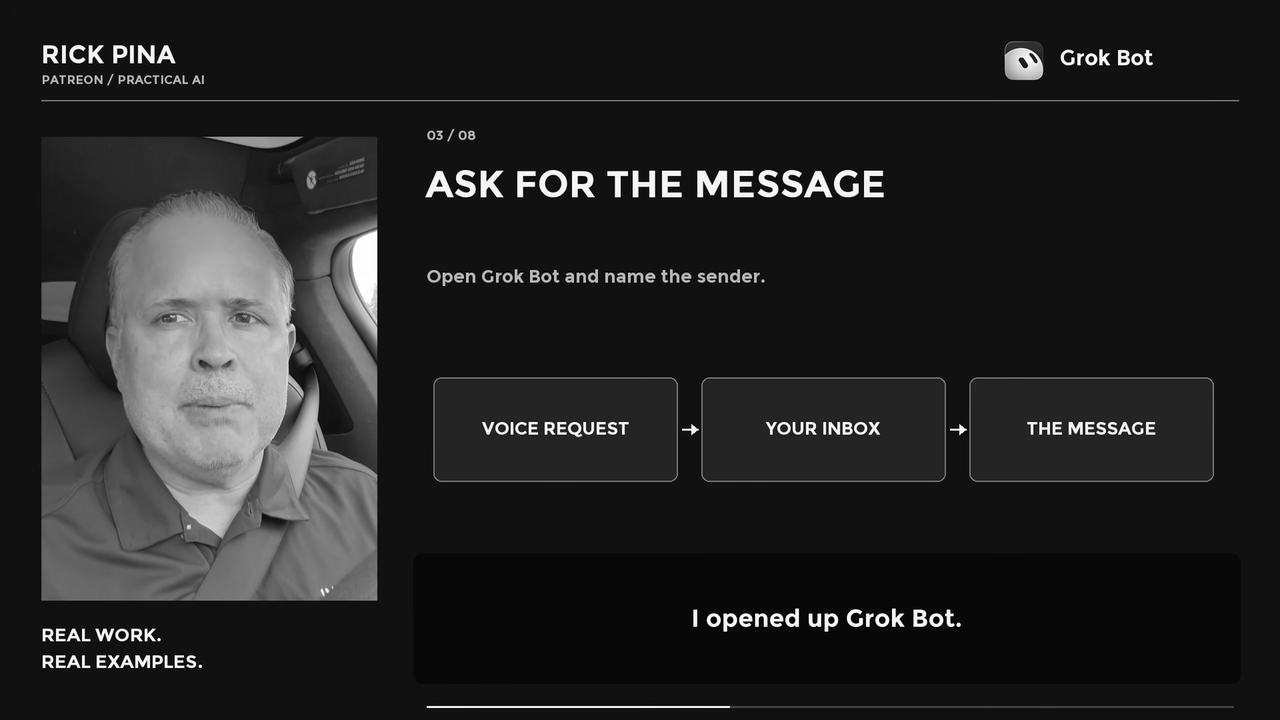
Slide 03 / 8 · 0:36 · Ask for the message
Once I got in the car, I opened Grok Bot.
What I said was roughly:
"Hey, go in my email. I just got an email from [this person]."
It came back and said, "Yes, you did."
Why this step matters: You do not have to scroll or search. Name the sender and let it find the message.
Step 2. Let it read the email (0:40)
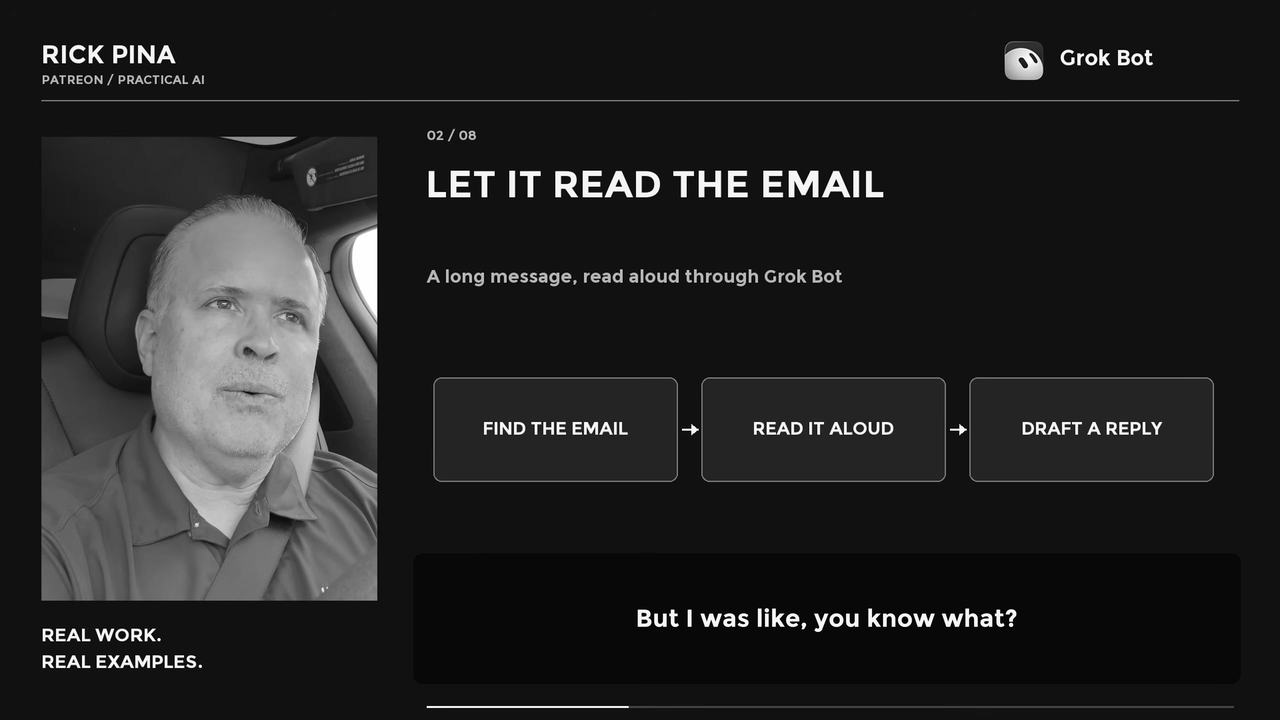
Slide 02 / 8 · 0:27 · Let it read the email
Then I said:
"Well, read it to me."
And it read me the email.
Why this step matters: Listen before you answer. You cannot write a good reply to an email you only skimmed.
Step 3. Give it the reply details (0:44)
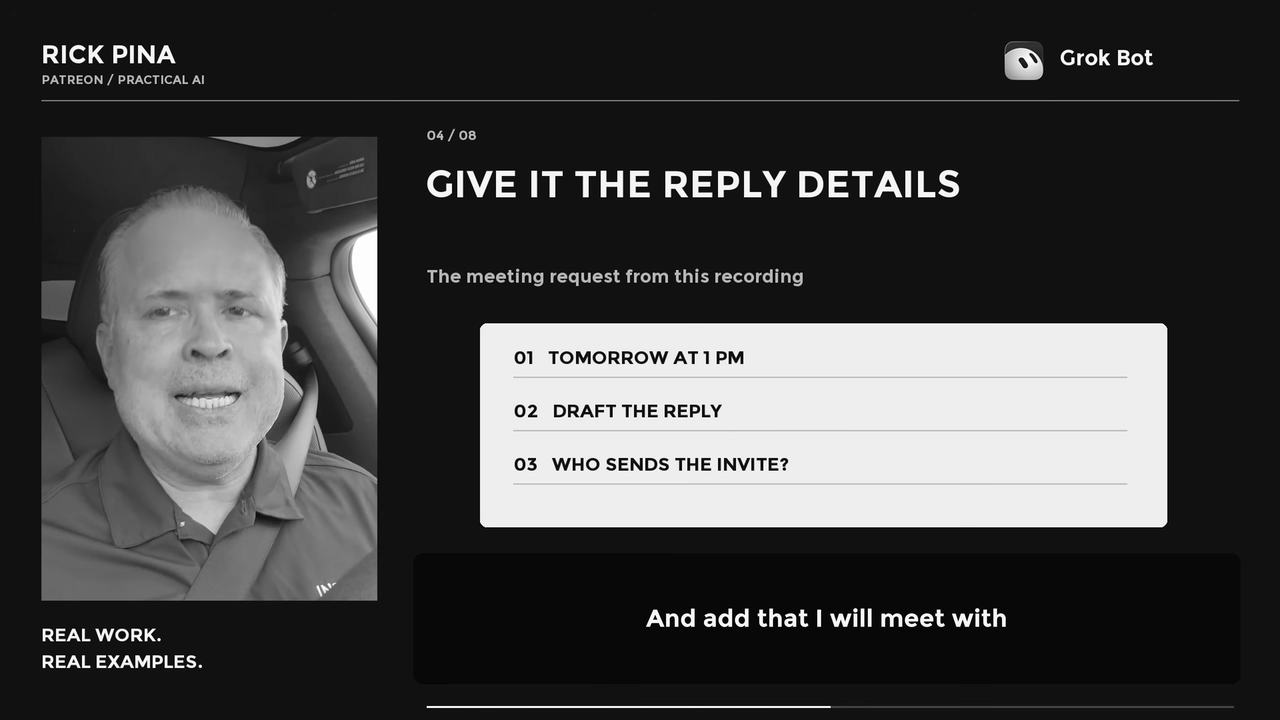
Slide 04 / 8 · 0:48 · Give it the reply details
It asked me, "Do you want me to draft a response?"
What I said was roughly:
"Yes, and add that I will meet with him tomorrow at 1 p.m. Let me know if he wants me to send an invite or if he's gonna do it."
Why this step matters: I made the decision. The AI wrote the words.
I told it when I would meet with him, and to ask whether he wants me to send the invite or if he's going to do it.
Step 4. Keep control of Send (0:53)
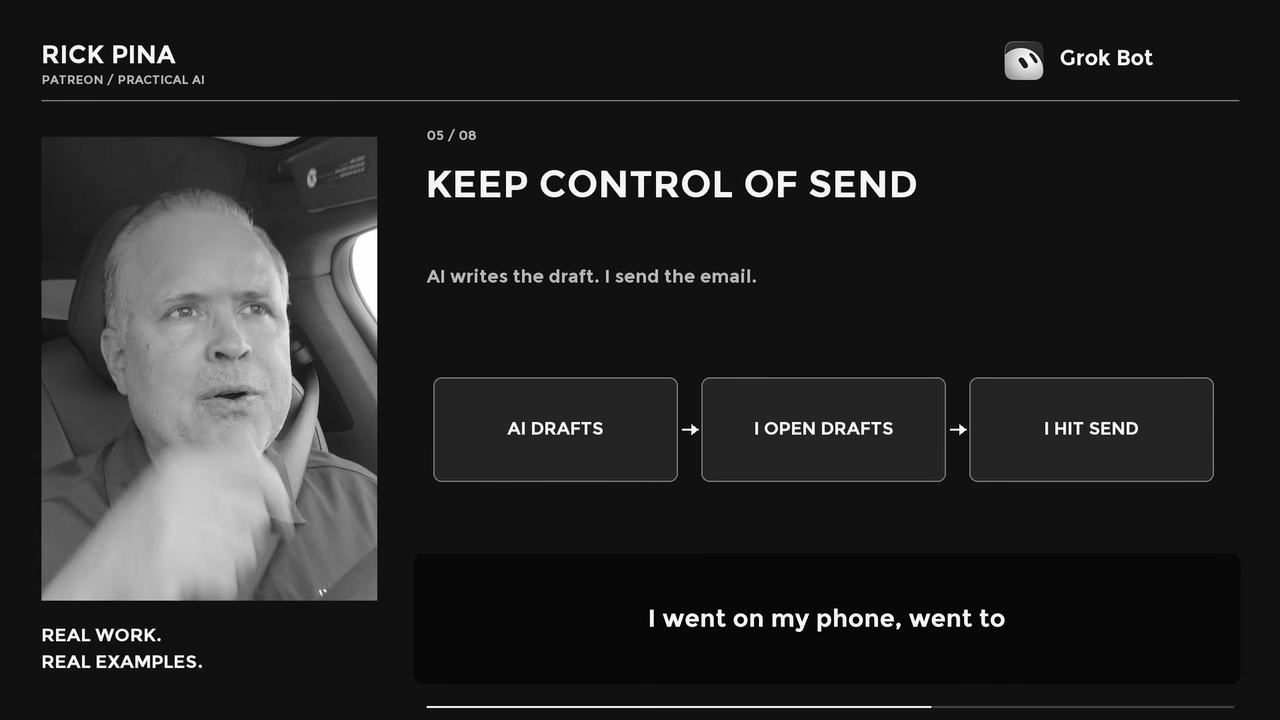
Slide 05 / 8 · 1:00 · Keep control of Send
It wrote the response. Then it asked, "Do you want me to send it?"
I said, "No."
I don't normally let AI send emails for me. My rule is draft-only.
I went on my phone, went to drafts, and then hit send, and I sent it myself.
(In Superhuman, the draft sits right in the same thread.)
Why this step matters: An email goes out with my name on it. Once it is sent, you cannot take it back. The AI can do the reading and the writing. The decision to send stays with me.
Step 5. Ask what else is hot (1:10)
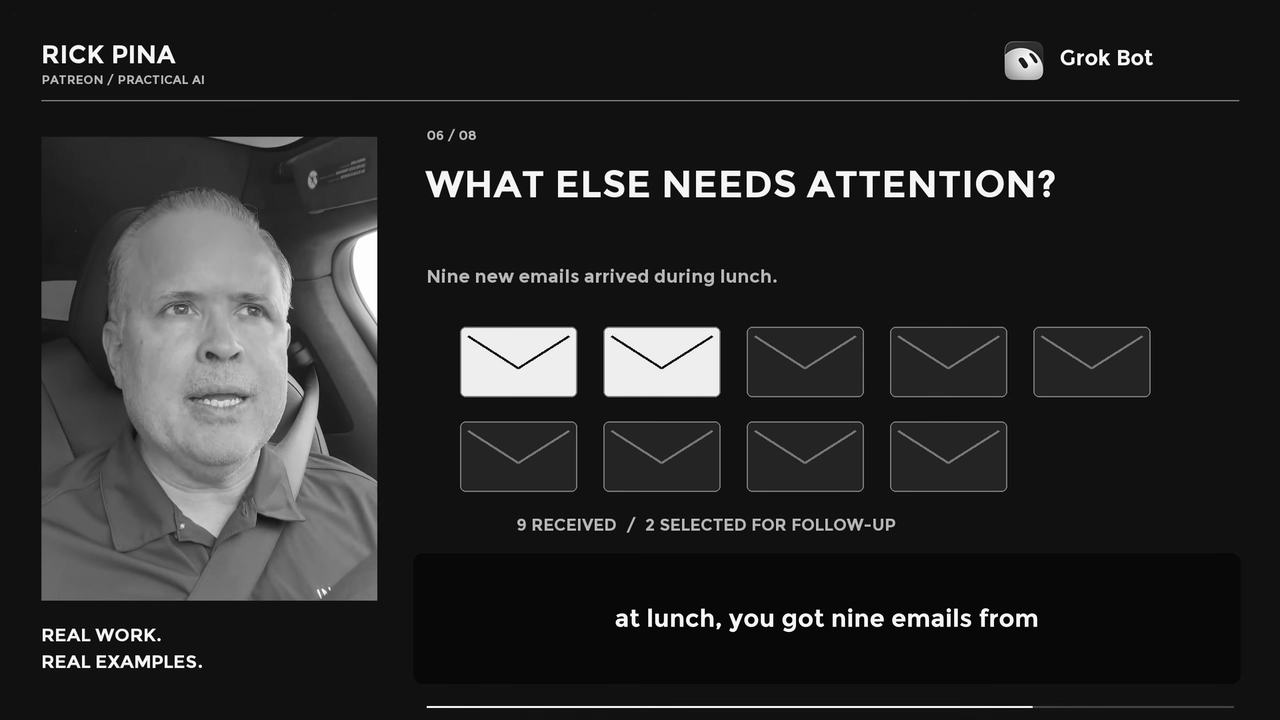
Slide 06 / 8 · 1:15 · What else needs attention?
Then I asked:
"Hey, is there anything else hot?"
It said, "Well, while you were at lunch, you got nine emails from these people."
Why this step matters: One question turned nine unread emails into a list of names I could decide on in seconds.
Step 6. Choose what matters (1:19)
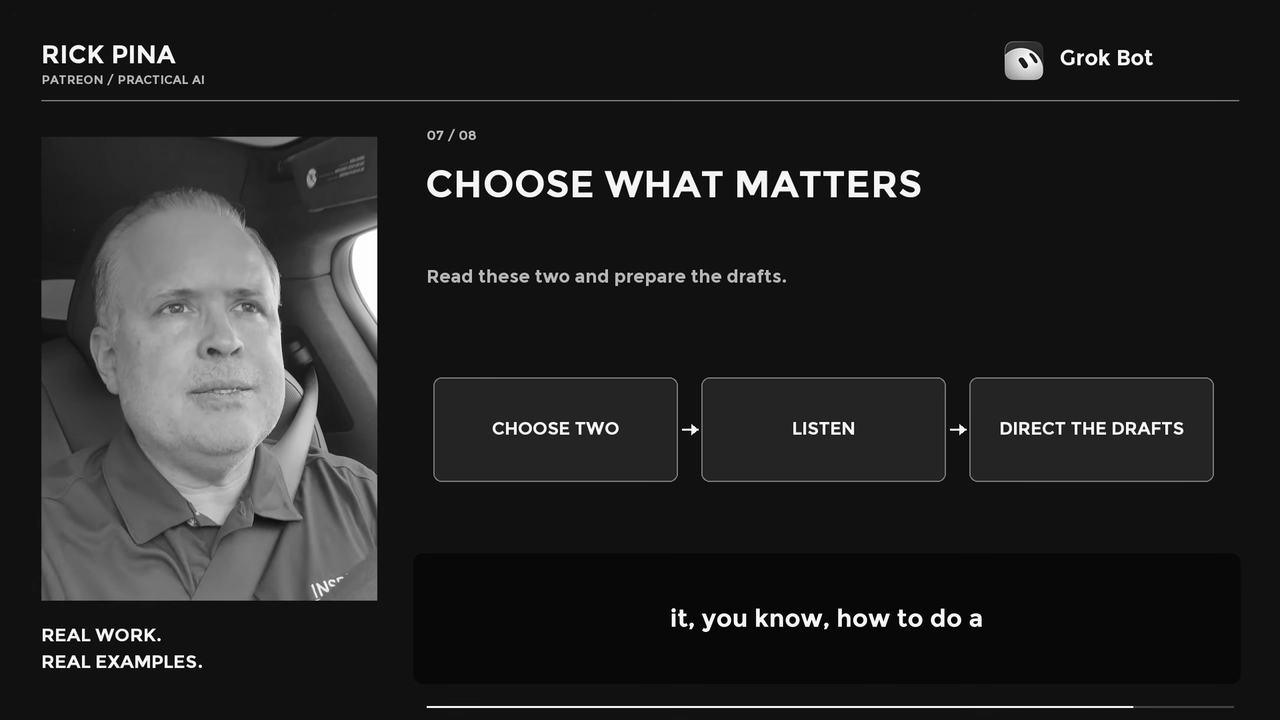
Slide 07 / 8 · 1:30 · Choose what matters
Instead of just evaluating them, it asked me, "Do you want me to evaluate, or tell me which ones?"
I said, "No. Seven of them I don't care about. Just read to me these two."
Why this step matters: I pushed back here. The AI offered to evaluate them for me. I said no, and told it which two to read.
That is triage. Nine came in. Two got my attention.
Step 7. Direct the drafts (1:27)
Then I told it how to draft those two.
Why this step matters: Same pattern as Step 3. I give the direction. It writes the draft.
Part 05
Here is what I want you to see
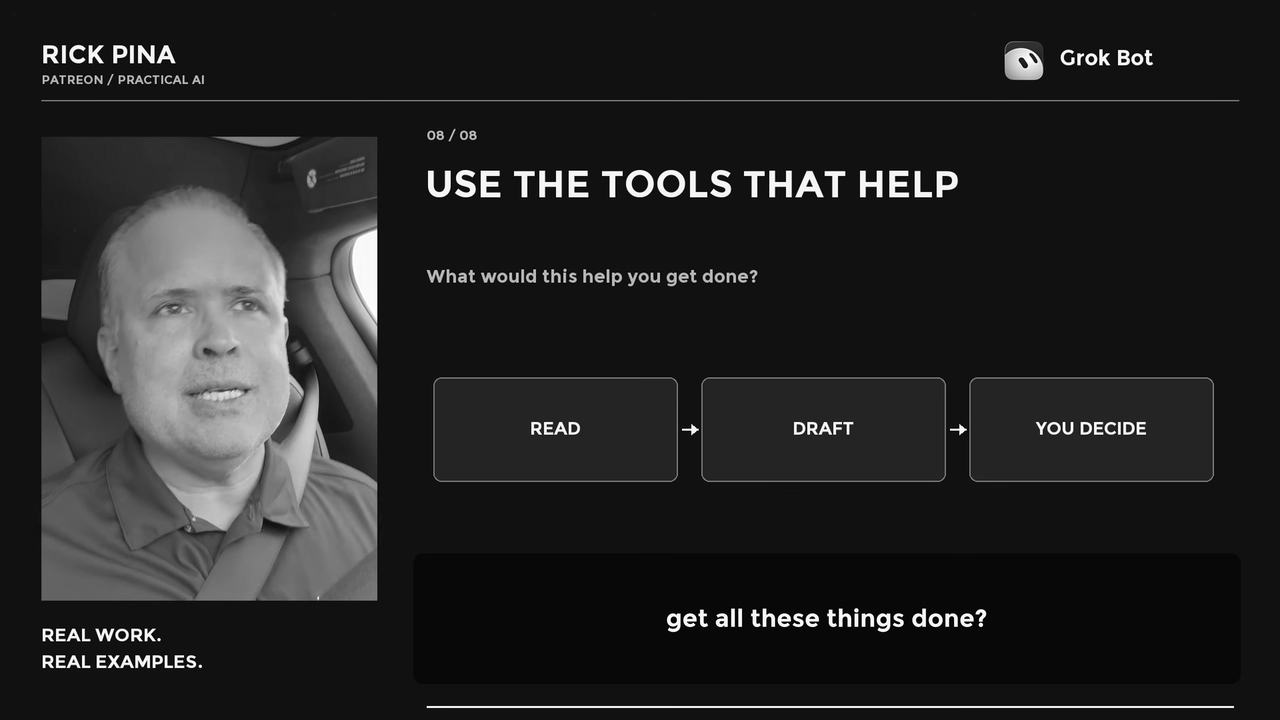
Slide 08 / 8 · 1:39 · Use the tools that help
The slide at the end of the video says it in three words. Read. Draft. You decide.
AI reads and drafts. I decide and I send.
An email is your words in writing. Once it leaves, it is out there. That is why the Send button stays in my hand.
Proverbs 21:23 (NLT) says, "Watch your tongue and keep your mouth shut, and you will stay out of trouble."
Draft-only is how I watch my tongue on email. The AI can prepare every word. I still decide what gets said.
Part 06
Copy-paste prompts you can use
Say these out loud or type them. Replace everything in brackets.
1. Find the email
"Go in my email. I just got an email from [sender's name]."
2. Read it
"Read it to me."
If it is long, you can add: "Then give me the one thing they are asking me for."
3. Draft the reply
"Draft a response. Say that [your decision, for example: I can meet tomorrow at 1 p.m.]. Ask [the one question you need answered, for example: whether they want me to send the invite or they will]."
4. Keep control of Send
"Do not send it. Leave it as a draft."
Then open the draft, read it, and press Send yourself.
5. Triage by voice
"Is there anything else hot? Tell me who emailed me since [time or event]."
6. You choose
"Just read me the ones from [name] and [name]. Skip the rest for now."
7. Direct the next drafts
"Draft a reply to [name] that says [your point]. Keep it short. Do not send it."
Part 07
How to set this up yourself
Pick an AI assistant app that can connect to your email. I use Grok Bot with my work email, which is Microsoft Outlook. Check that your app can read your inbox and save a draft reply.
Connect your email account inside the app. Follow the app's own steps for connecting your email. Only connect accounts you are comfortable letting it read.
Use an email app you like on your phone. I read and send my Outlook email through Superhuman. (In Superhuman, the draft sits right in the same thread.)
Set your rule before you start: draft-only. If your app has a setting or standing instruction for this, tell it never to send without you. Either way, when it asks "Do you want me to send it?", your answer is no.
Hands-free in the car. Start the conversation before you pull out, keep the phone mounted, and just listen and talk. Open the draft and press Send when you are parked.
Read every draft before you send it. The AI wrote it. Your name is on it.
Start small. Try one long email first. Then try "anything else hot?" when you come out of a meeting.
Part 08
Let's discuss it
What do you think about that? How would reading and drafting by voice help you get things done?
And tell me: would you ever let AI press Send for you? Why or why not?
If you are not a member of our Patreon, join today. Coaching and mentorship designed to maximize your potential, increase your personal productivity, and fulfill your life’s purpose. Weekly teaching, a private community, and one-on-one coaching calls, all on Patreon.
LIBRARY TIER
$25/month
Hundreds of videos and weekly teaching on life, faith, family, business, and relationships. Private Grace Life Discord, early access, and bonus episodes.
MONTHLY 1:1 MEETINGS
$100/month
Everything in Library, plus a monthly one-on-one phone call with Rick or Isabella (coaching, prayer, personal or business guidance) and direct Q&A access.
DIRECT COACHING
$500/month
Monthly one-on-one video coaching sessions with Rick or Isabella, direct Q&A access, and the full content library.